> For the complete documentation index, see [llms.txt](https://nobraintools.gitbook.io/maya-groomers-tool/llms.txt). Markdown versions of documentation pages are available by appending `.md` to page URLs; this page is available as [Markdown](https://nobraintools.gitbook.io/maya-groomers-tool/maya-tools/hair-tube-builder-v14.05/profile-curves.md).
# Profile Curves
## Root and Tip Profile Curves
* All hair tube strand will come with a root and a tip profile curve. They should not be deleted.
* To toggle the curves, click on the button directly.
* **Ctrl + Click** will allow multiple profile curve display
## Mid Curves
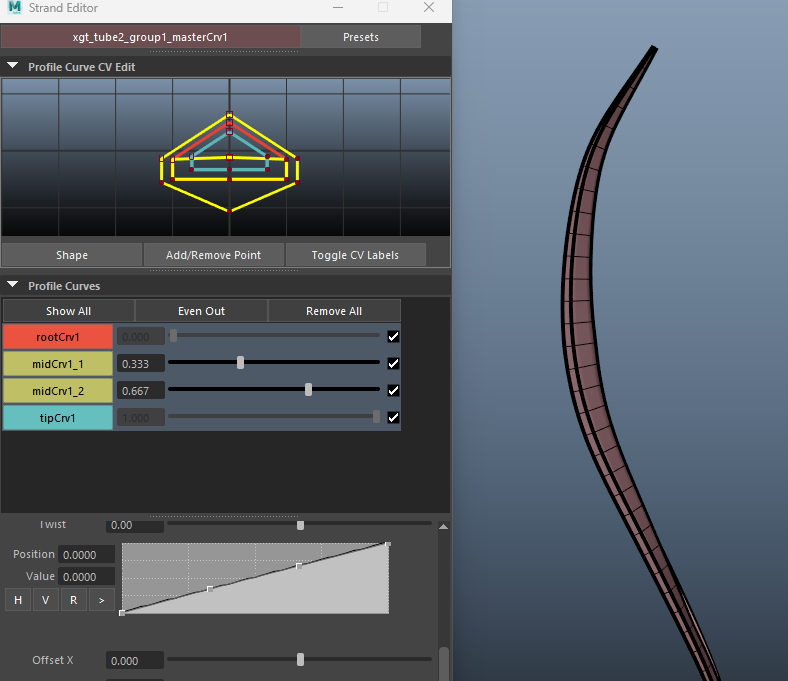
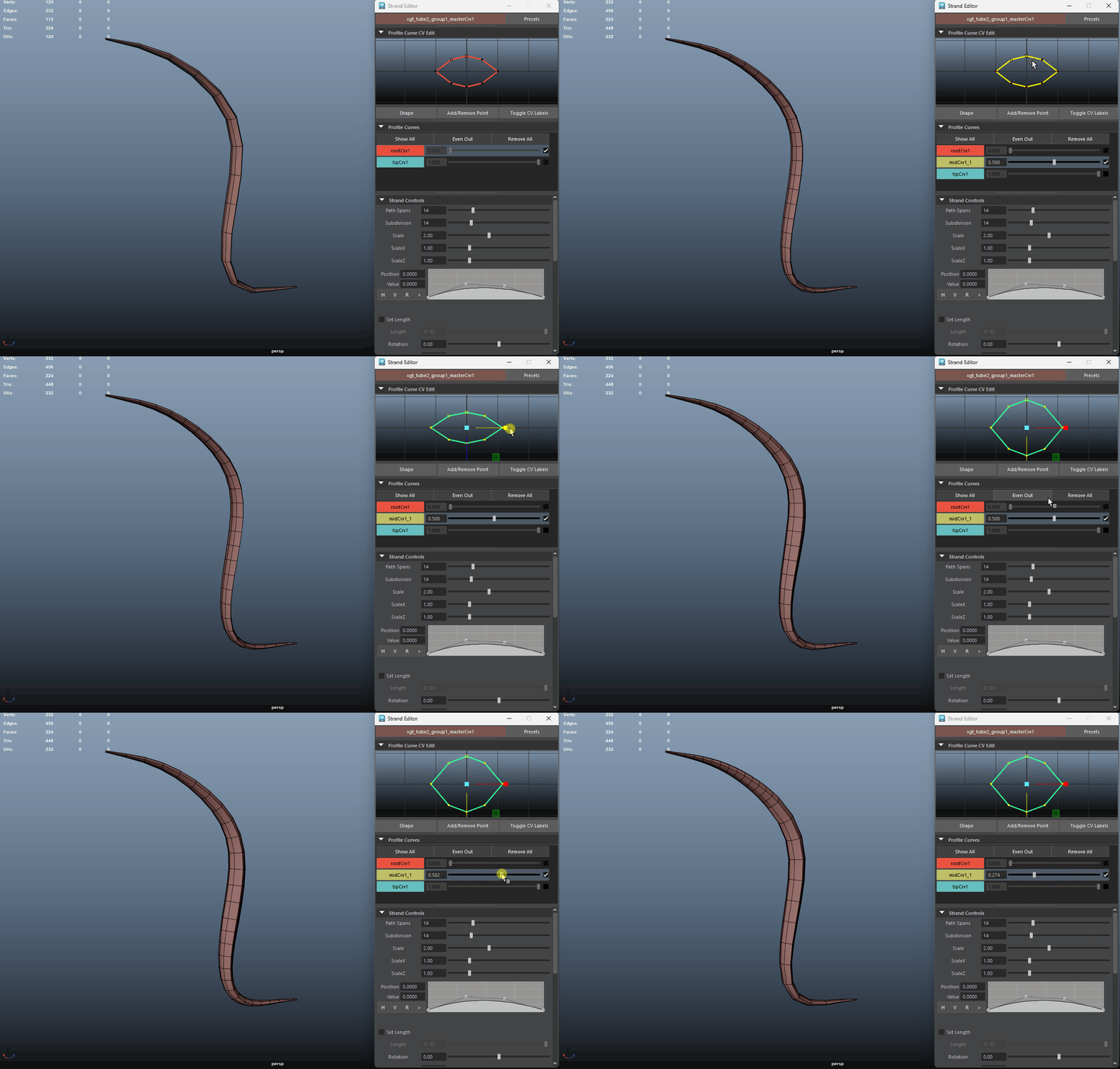
Instead of relying only on the tip and root profile curves, **adding mid curves** gives you the ability to fine-tune the shape of your tube strands in the **middle section**. Just like with the tip and root curves, you can adjust both the **shape** and **position** of each mid curve using the sliders next to them. This will provide you with even greater control over the overall form and flow.
{% hint style="warning" %}
**Adding mid curves** will automatically increase the strand’s subdivision. This is by default the nature of Maya and this feature can not be modified. If you wish to set the subdivision lower, please change the subdivision slider.
{% endhint %}
A new **Profile Curves** section has been added, allowing you to easily toggle all **root**, **tip**, or **mid** curves at once.
* To insert a mid curve, simply **right-click** on the **rootCrv** or any **midCrvs** button.
* To **toggle** a profile curve, simply **click** on the button. Hold **Ctrl + click** to display **multiple profile curves** at the same time.
* You can use the **slider** to adjust the **position** of a mid curve along the path curve.
* Make sure the slider stays **between** the previous and next profile curves to avoid **pinching** in the strand shape.
* To **remove** a mid curve, simply **right-click** on the `midCrv#_#` button and select **Remove**.
Right Click to Remove a mid profile curve.
* You can also remove **all** mid curves at once by clicking the **Remove All** button.
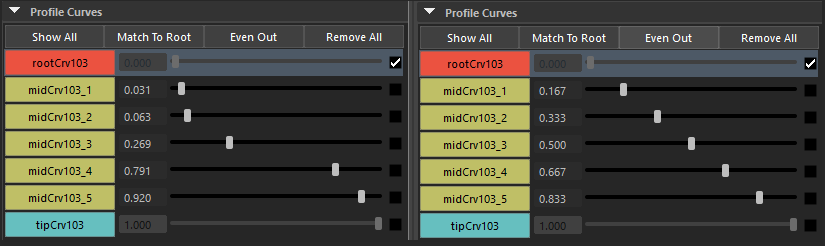
* **Even Out Sliders**: When multiple mid curves are present, clicking the **Even Out** button will automatically distribute the sliders evenly along the path curve.
Before Even Out (left), After Even Out is clicked (right), sliders are evenly spaced out from 0 to 1