> For the complete documentation index, see [llms.txt](https://nobraintools.gitbook.io/maya-groomers-tool/llms.txt). Markdown versions of documentation pages are available by appending `.md` to page URLs; this page is available as [Markdown](https://nobraintools.gitbook.io/maya-groomers-tool/maya-tools/hair-strand-builders/profile-curves.md).
# Profile Curves
The Profile Curve section is within the Strand Editor that allows you to give even more control to the profile shapes.
Using the profile curve section, you will be able to adjust the shape along the length of your strands.
## **Profile Curve Buttons**
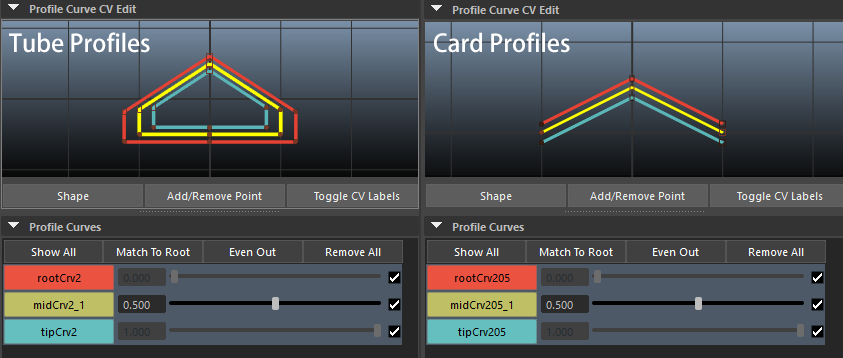
* **Show All**: Display all profile curves in the Profile Curve CV Edit window.
* **Match To Root:** With profile curve layers selected, match the shapes to the rootCrv. (tip curve can also be applied).
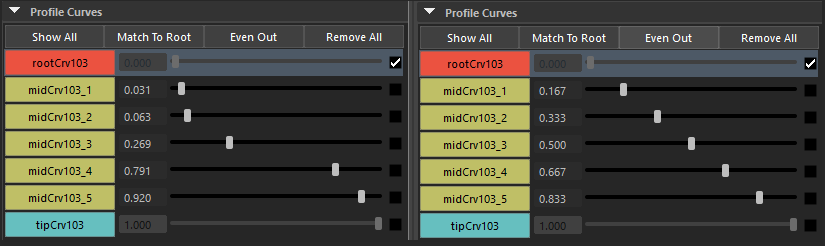
* **Even Out**: Space out middle curves evenly within 0 (root profile) to 1 (tip profile) position.
* **Remove All**: Removes all middle profile curves.
## Root and Tip Profile Curves
* All hair strands will come with a root and a tip profile curve. They can not be deleted.
## Mid Profile Curves
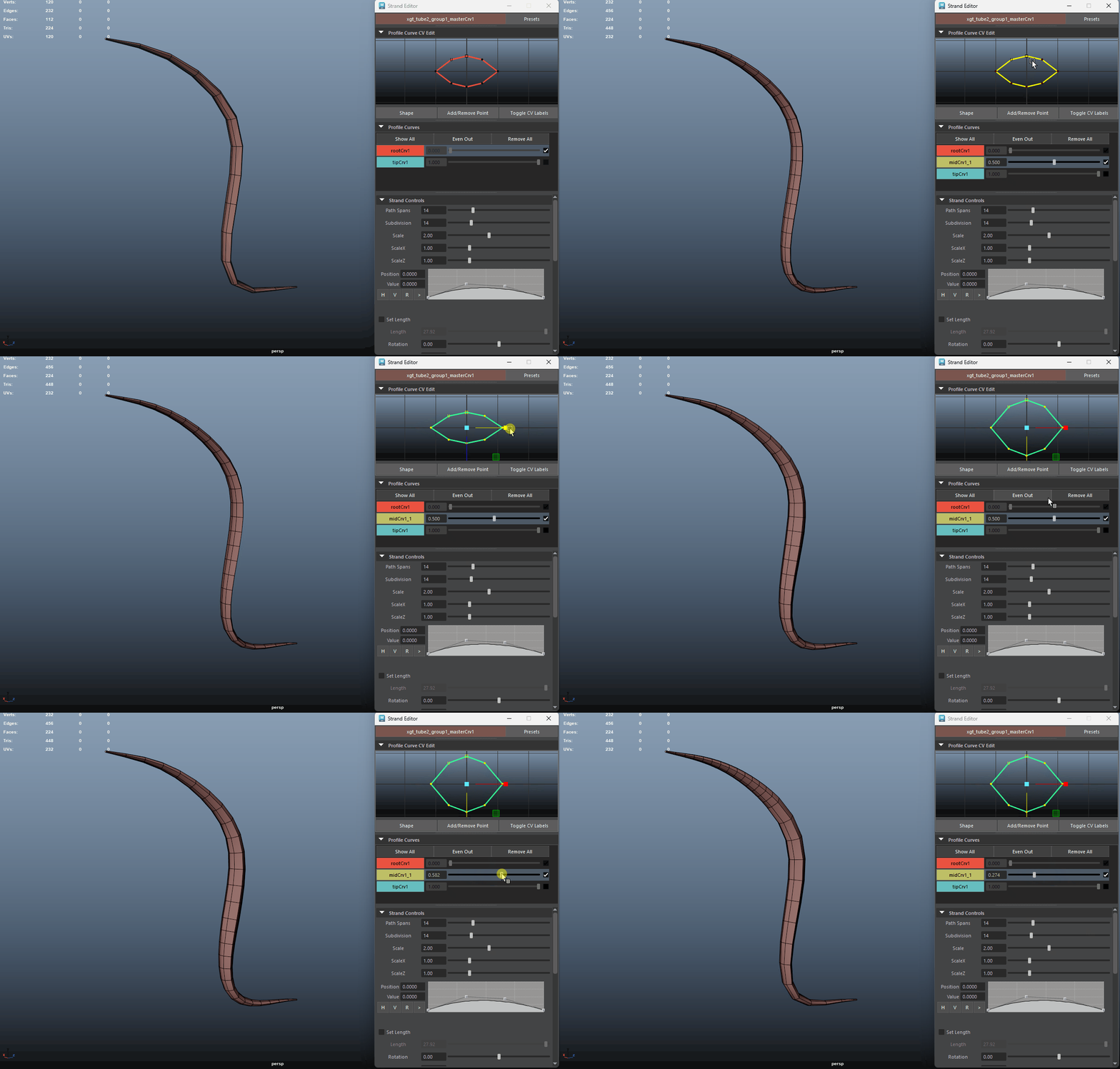
Instead of relying only on the tip and root profile curves, **adding mid profiles** gives you the ability to fine-tune the shape of your tube strands in the **middle section**. Just like with the tip and root curves, you can adjust the profile **shape** by moving their CVs component.
This will provide you with even greater control over the overall form and flow.
## Profile Curve Controls
### Create A Mid Profile Curve
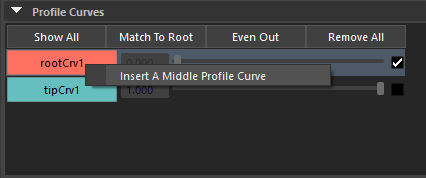
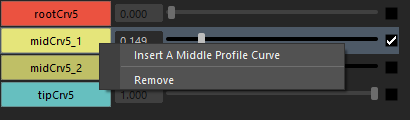
* To insert a mid curve, simply **right-click** on the **rootCrv** or any **midCrvs** button. You can not create a mid profile on the **tipCrv** button
{% hint style="info" %}
**Adding mid curves** will automatically increase the strand’s subdivision. This is by default the nature of Maya and this feature can not be modified. If you wish to set the subdivision lower, please change the subdivision slider.
{% endhint %}
### **Card Topology Vs Profile Curves**
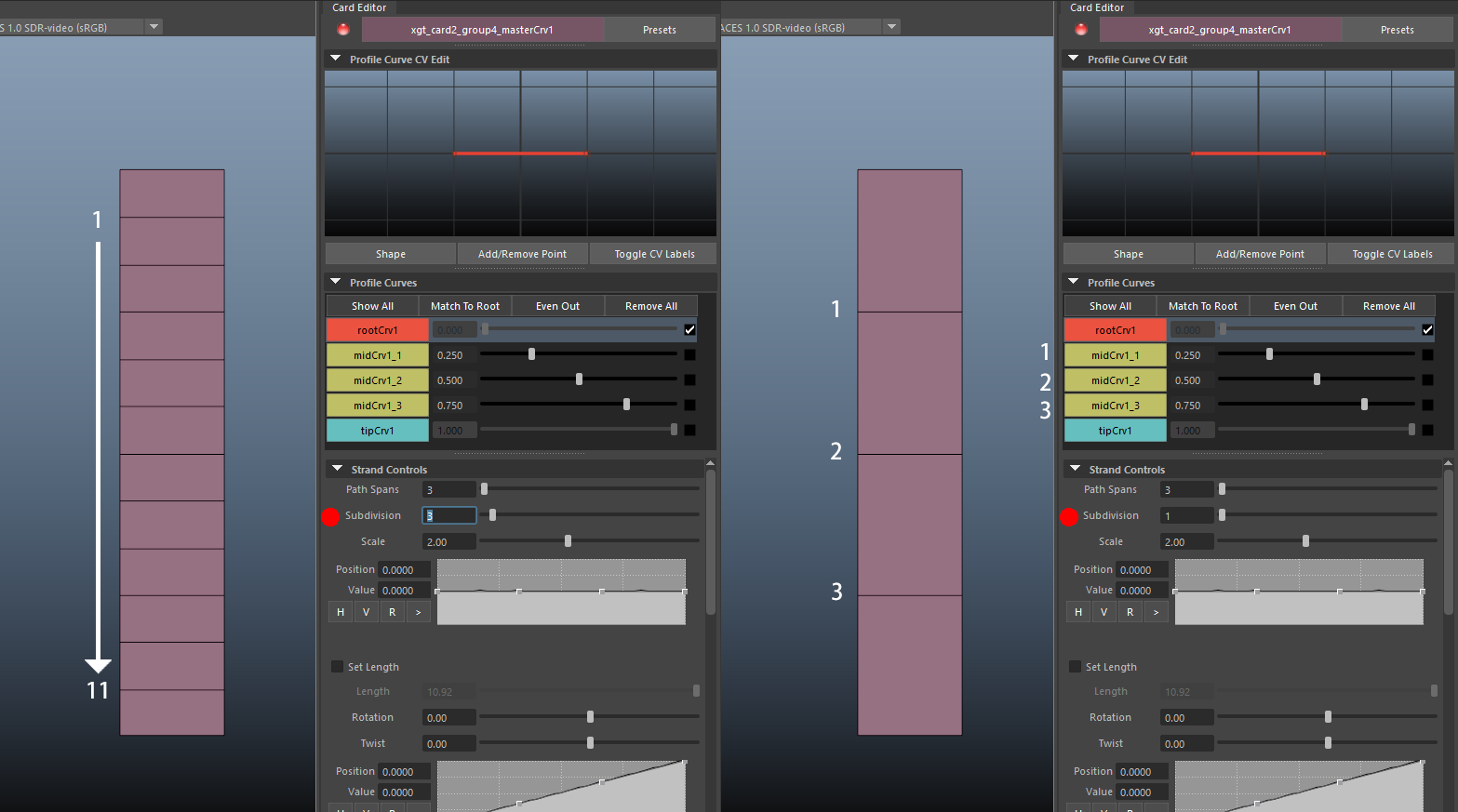
* After adding a profile curve, the Subdivision can be set to 1, which will allow you to have a matching count of profile curves vs the topology count. This is for card strands only. Tube strands will always have the minimum subdivision at 4.
### Toggling Profile Curves
* To **toggle** a profile curve, simply **click** on the named button.
* **Ctrl + Click** will allow multiple profile curve display .
* Click on the **Show All** button will display all profile curves in the window.
### Profile Curve Sliders
You can use the **slider** to adjust the **position** of a mid curve along the path curve.
* Make sure the slider stays **between** the previous and next profile curves to avoid **pinching** in the strand shape. Even though the sliders will be pushed away if it went below the previous, or over the next curves automatically, it's still good practice to have enough distance between the sliders.
### Match To Root
* When dealing with profile curves, and if you forget to adjust the shape for some (or all profile curves), you can now match the shape to the root profile curve.
* Select all the profile curves (make sure their layers are highlighted), and click on **Match To Root** button.
### Even Out Mid Profiles
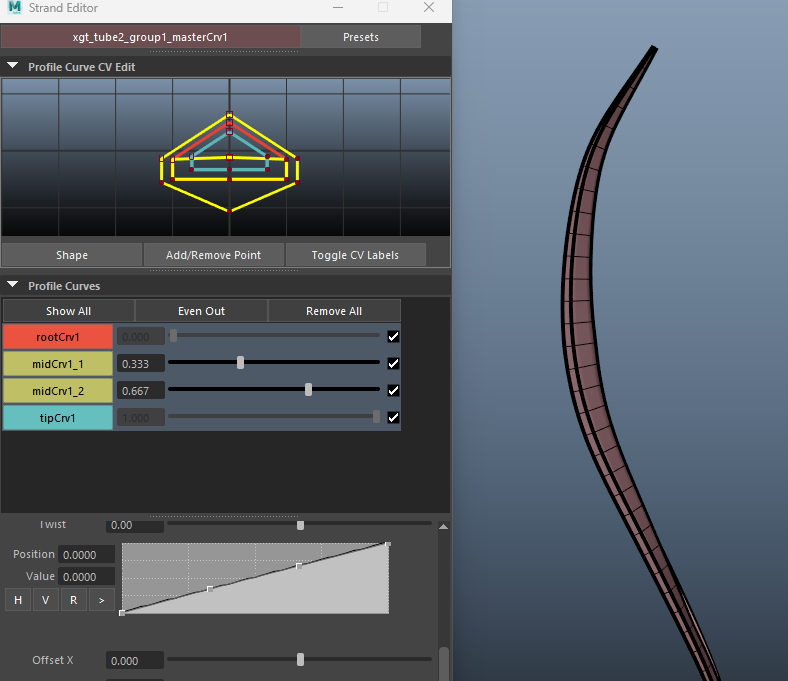
* **Even Out Sliders**: When multiple mid curves are present, clicking the **Even Out** button will automatically distribute the sliders evenly along the path curve.
Before Even Out (left), After Even Out is clicked (right), sliders are evenly spaced out from 0 to 1
### Remove
* At the moment, you can only remove the mid profile curves, and you can only do it one at a time, or all at once.
* To **remove** a mid curve, simply **right-click** on the `midCrv#_#` button and select **Remove**.
* To remove **all** mid curves at once by clicking the **Remove All** button.