> For the complete documentation index, see [llms.txt](https://nobraintools.gitbook.io/maya-groomers-tool/llms.txt). Markdown versions of documentation pages are available by appending `.md` to page URLs; this page is available as [Markdown](https://nobraintools.gitbook.io/maya-groomers-tool/maya-tools/hair-strand-builders/aim-controls.md).
# Aim Controls
The strand builder offers three aim modes:
* Curve Normal
* Auto Normal
* Aim Curve (Default)
You can set up the default aim mode on creation, by going to Menu -> Set Scene Presets
## Aim Modes
### Curve Normal
* Orients the mesh along the curve's normals at each control point.
{% hint style="danger" %}
The least user friendly, can cause unwanted twisting along the strands, but it can be useful in specific situations.
{% endhint %}
### Auto Normals
* Automatically determines how to orient the mesh based on its normals.
{% hint style="success" %}
When using Auto Normal as the aim mode, strands are not relying on a aim curve. It can be easier to adjust strands without having to worry about an Aim Curve coming into influence in some cases.
{% endhint %}
### Aim Curve
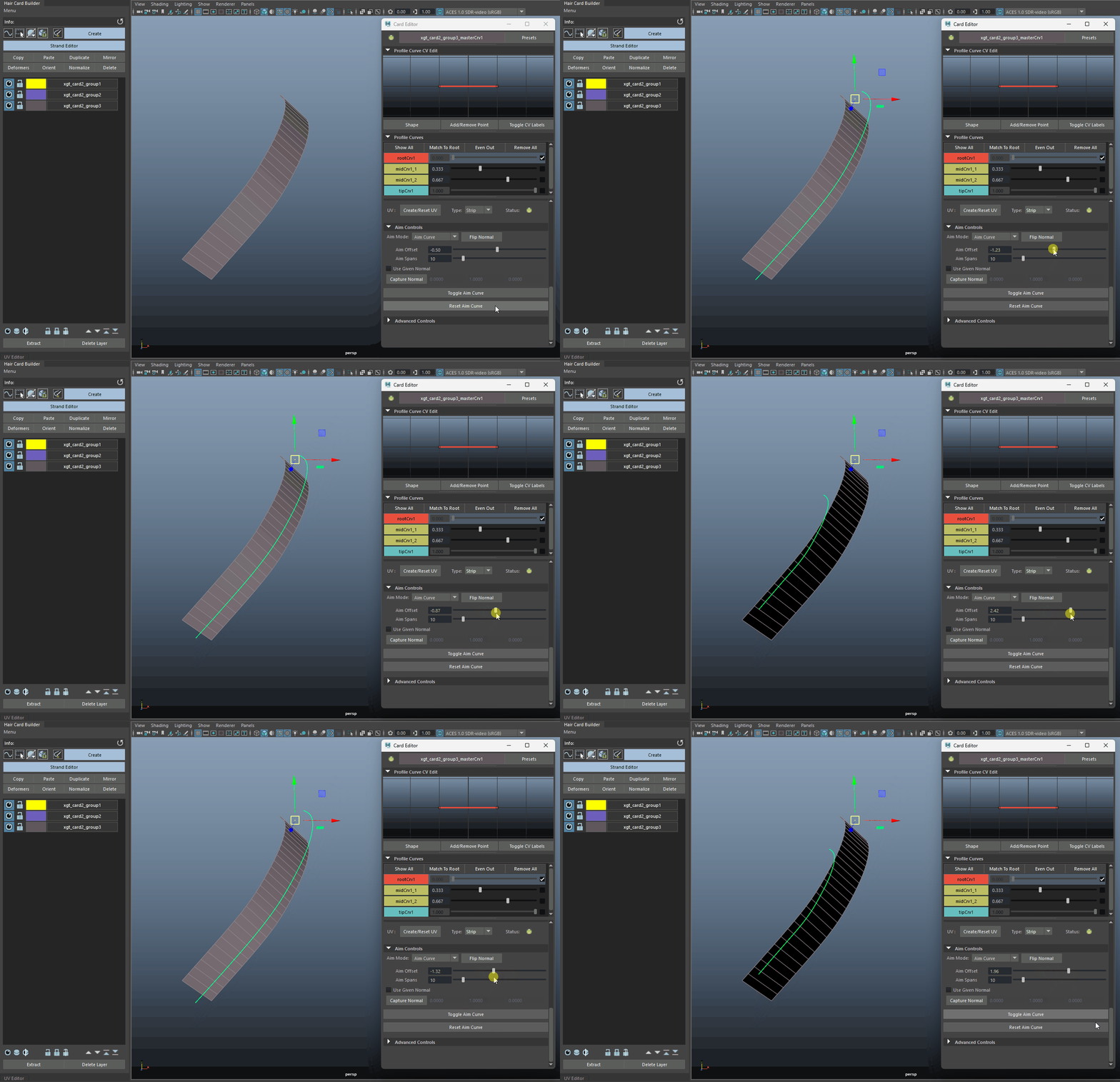
* Orients the mesh towards a specified curve.
* When a strand is created, it's automatically set to **Aim Curve** mode.
* You can adjust the aim curve to determine how a strand is oriented, either by brushing part of the CVs, in which only the nearby faces of the strands will be affected.
* Or simply move the entire aim curve away, and all the faces will be oriented accordingly.
{% hint style="success" %}
As it allows more level of controls with the strands builder, this is set as the default method unless you change the Aim Mode On Create option in the Scene Presets. [Scene Presets](/maya-groomers-tool/maya-tools/hair-strand-builders/scene-presets.md#aim-mode-on-create)
{% endhint %}
## Flip Normal
* Available in all three aim modes. When flipping the normal, and if UV Retaining is active, it will also automatically remap your UV.
## Aim Curve Controls
### Aim Offset
* Distance of the aim curve away from the strand curve. Depending on how your curve is oriented, sliding this attribute can flip your geometries.
### Aim Spans
* This slider changes the aim curve CV counts. It can sometimes be extremely useful when dealing with more complicated shapes (like coils and curls). You can reduce the cv counts on the aim curve to so the curve sits in the middle of the coils, causing the coil faces to align properly.
* In other cases, you can also increase the span count to to get more CVs on the aim curve, this will allow fixing of a strand area that has pinches.
### Use Given Normal
* If you like to keep the Aim Spans with higher CVs, another alternative to fix the normal is by turning on the Use Given Normal control, and manually imputing a value to the x, y, z field for the given normal,.
### Capture Normal (Maya 2022 Py3 + Only)
* Or, you can aim the camera so it's pointing roughly perpendicular to the opening of your twist/curls, and click on Capture Normal. The tool will automatically capture the normal vector and apply to the x, y, z fields.
* This will be extremely useful for for making twists and curls.
* With this, it gives you a very nice starting point on curls/twists. We can fix the 'pinching' of the strand by using the Interactive Sculpting Tool on strand curve and the aim curve.
Using the Interactive Sculpting Tool, we can fix both the strand curve, and the aim curve.
### Toggle Aim Curve
* Clicking on the Toggle Aim Curve button will show the Aim Curve.
* The Aim curve will be displayed in white.
* Upon existing the Strand Editor, all aim curves will be hidden away again.
### Reset Aim Curve
* Resets the aim curve.
### Hide All Aim Curves
* When dealing with multiple strands in scene in aim curve mode, scene can get messy. Click this button to hide all aim curves at once.
{% hint style="warning" %}
If you have any transform values on an aim curve, they will not be reset. Please use Maya's Modify > Reset Transformations
{% endhint %}